Watch YouTube with dual subtitles
Show two subtitle lines inside the YouTube player on your desktop computer: the spoken-language caption on top and your translation below it.
Free Chrome extension. Works on YouTube videos with captions, including auto-generated ones.
The desktop Chrome extension runs directly inside the YouTube watch page so it can display dual subtitles over the player and pause after each caption line for dictation or shadowing.
What dual subtitles require
- Requires the LangBox extension in Chrome on a desktop computer on youtube.com watch pages.
- The video must already have human or auto-generated captions; live streams and uncaptioned videos are not supported.
- Translation uses your 2M-token guest trial, your 10M-token 30-day signed-in allowance, or your own API key.
What you get on YouTube
Dual subtitles on the video
The original line with your language under it, in time with the video. Turn it on and off with the LangBox button in the player.
Transcript beside the video
Click Dictation next to Like. The transcript opens on the right, one sentence per line with its translation, and follows the video. Click a sentence to jump to it.
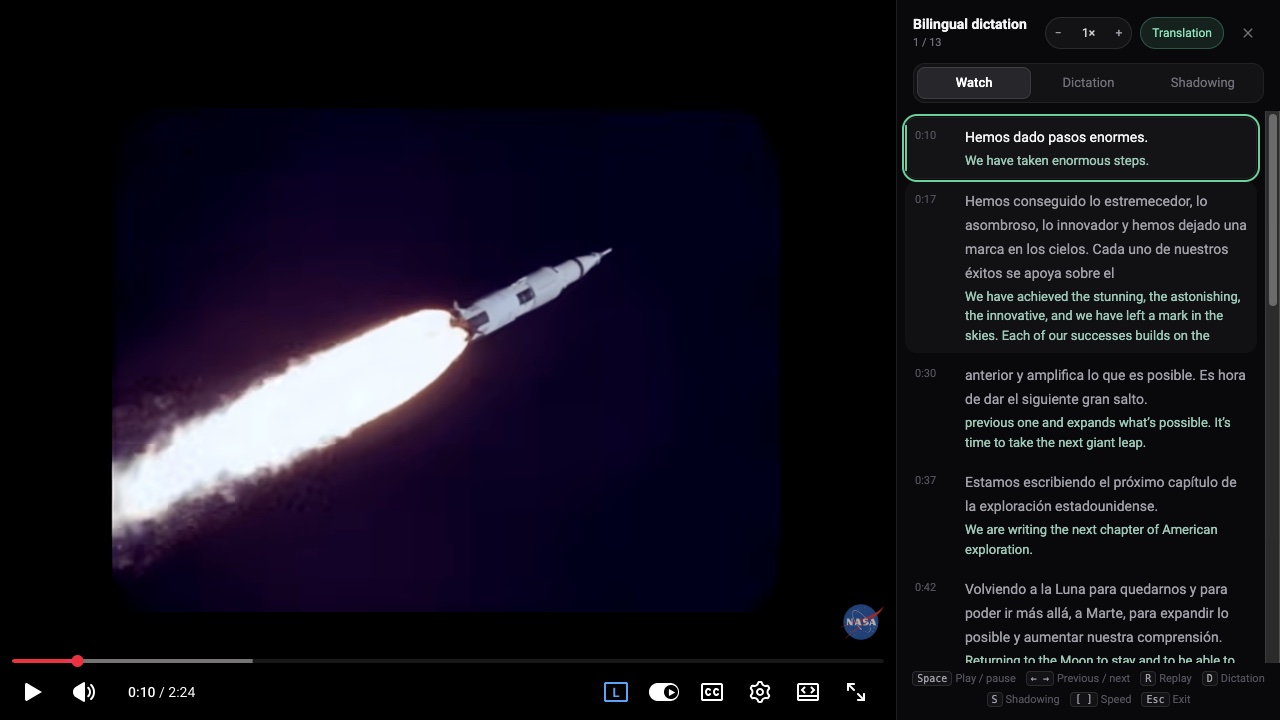
Real screenshots of the extension on a NASA video. NASA does not endorse LangBox.
Dictation practice
Press D. Each sentence turns into blanks, the video pauses at the end of the sentence, and LangBox checks what you typed word by word.
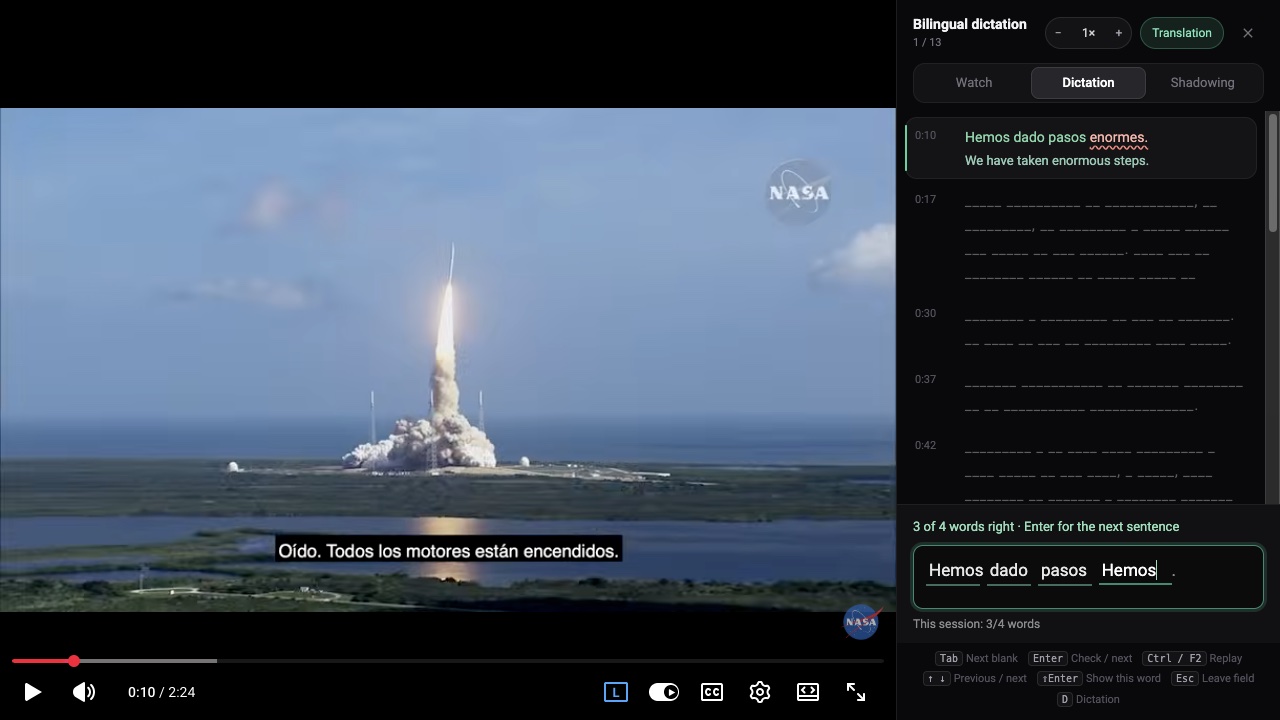
Real screenshots of the extension on a NASA video. NASA does not endorse LangBox.
Shadowing
Press S in the same panel. Say each sentence after the video, and LangBox shows which words it heard.
How shadowing works →
How to turn on dual subtitles
Install the extension and open a video
Add LangBox to desktop Chrome and open a YouTube video that has human or auto-generated captions.
Enable translation in the player
Click the LangBox button at the bottom right of the YouTube player to translate the caption track.
Read along or open the side transcript
Follow both subtitle lines during playback, or click Dictation next to Like to view the scrolling bilingual transcript.
Questions
- Is it free?
- The extension is free. The transcript and dictation need no account. Translation uses LangBox translation: guests get a one-time trial of 2,000,000 tokens, and you can sign in with Google for a monthly allowance or use your own API key.
- Can I use it on a phone or tablet?
- No. Chrome extensions work only in Chrome on a computer. On a phone, copy or email yourself the link and install it later on your computer.
- Which languages are supported?
- Any language the video has subtitles in. LangBox uses the subtitles for the language spoken in the video and translates them into the language you choose.
Keep learning after this tool
These tools handle one file at a time. The free LangBox Chrome extension brings the same translation to everything you read and watch, and saves new words for review.
- Translate web pagesTranslation under each paragraph
- YouTubeDual subtitles, transcript and dictation
- Dictionary & word reviewDouble-click a word, review it later