How to translate a scanned PDF and check for OCR errors
A scanned PDF contains page images rather than selectable text. OCR recognizes the characters before translation begins. A translation can read smoothly even if OCR misread a number or merged columns. Always check the source and output side by side.
Choose a workflow based on your file
| What you see | Next step |
|---|---|
| Text is selectable, and copied paragraphs paste in the correct order. | Use the text PDF workflow. Test a table or dense page before translating the full file. |
| No text is selectable. | Use the scanned PDF workflow with OCR. After translation, compare characters and numbers against the original image. |
| Text is selectable, but columns merge when pasted. | Test this page first. Selectable text does not guarantee a correct reading order. |
| The file contains both text pages and scanned pages. | Test one text page and one scanned page. Review both outputs before translating the full document. |
First, check which pages need OCR
Select a sentence and paste it into a plain-text editor. If you cannot select any text, the page likely needs OCR. If the pasted text is garbled or merges columns, the existing text layer also needs close inspection. Because a PDF can mix text pages and scans, check more than just the first page.
Prepare a small representative sample
Use only pages you have permission to upload. For your first test, include a clear page, a dense page, and a page with a table. Rotate sideways pages and avoid cropped text. Keep your original file safe. LangBox accepts files up to 100 MB with no page limit, so split only files above that size. Enlarging a blurry scan will not restore missing characters.
Translate and inspect the initial output
Open the PDF translator, sign in, select your source and target languages, and upload the sample. Scanned pages are processed using the configured OCR service. Wait for the job to finish, then compare the bilingual output against the original. Download your file within 24 hours. This workflow is an online service and does not run offline.
Verify columns, tables, and numbers
Read a full paragraph from start to finish to catch merged columns. Check every number against its row heading, column heading, and unit. Compare minus signs, decimal points, dates, and negations. Read formulas directly from the original file. In our archived fixture, CC0 was misread as CCo and a Chinese unit wrapped awkwardly even though the job finished without error.
What to do if the output is unusable
If text overlaps, a column disappears, or numbers change, do not use the output. Try a cleaner authorized source or a smaller sample and inspect the new result. For complex tables or formulas, rely on the original document or get a human review. Retrying a file may use additional credits and does not guarantee better character recognition.
What this example demonstrates
The downloadable fixture contains one selectable-text page and one matching scanned page, paired with an unedited translation. It shows specific successes and errors on those exact pages. It does not prove accuracy for handwriting, low-quality scans, other languages, or academic papers.
Compare real PDF inputs and outputs
These are archived LangBox production results from 20 September 2026, not fresh benchmark runs. Open the original and unedited output side by side. Use the examples below to judge whether the output suits your document.
The same page as a scan
Page 2 is an image of page 1. The final OCR rerun keeps the paragraphs readable, but CC0 becomes CCo and the typography changes. This two-page rerun used GPT-5.6 Luna and took about 96 seconds. Because it used a different model than the prose test, do not compare these times as a benchmark.
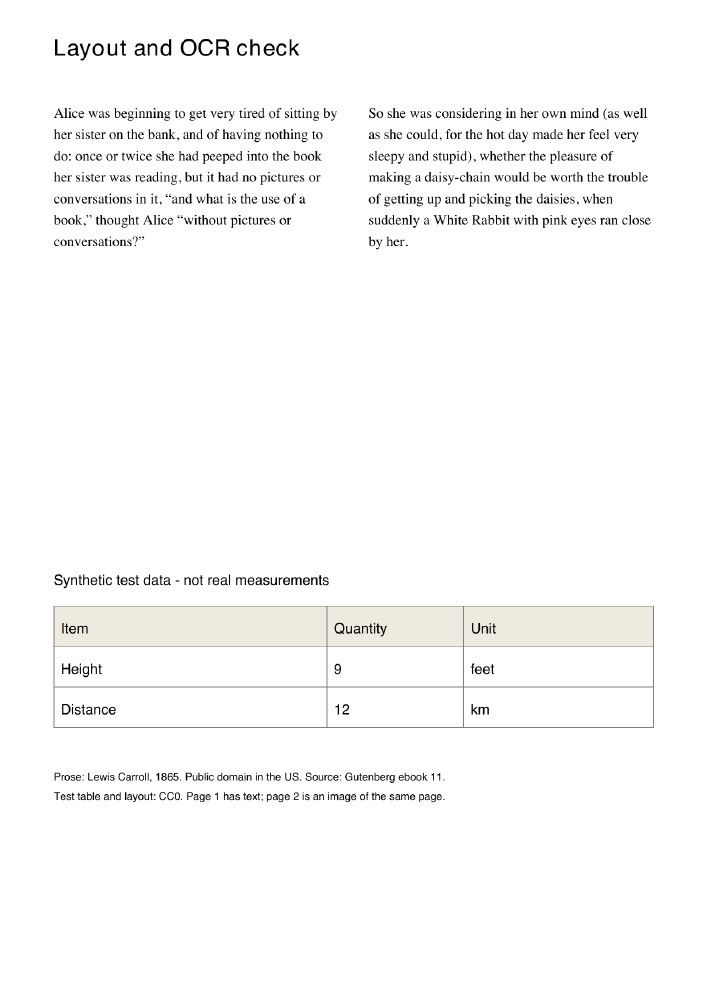
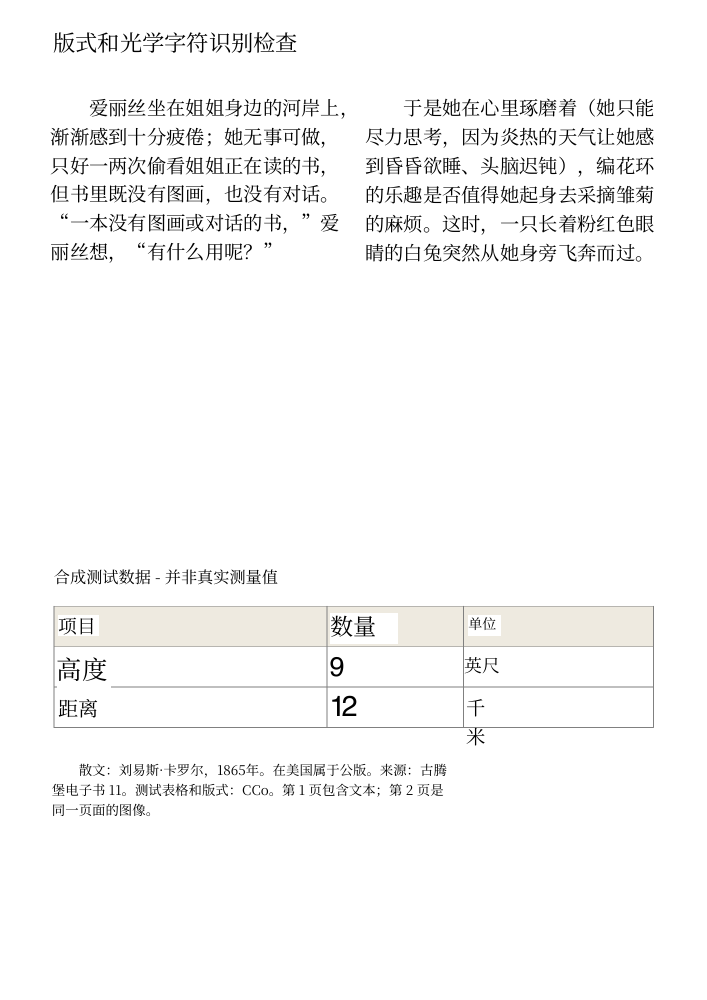
Click either page to open the PDF. The source and output shown come from the same archived test.
Check these details before trusting a result
Compare names, negations, decimal points, units, table cells, and formulas against the original. A completed job does not guarantee these details are right. PDF translation requires a free account and credits, accepts files up to 100 MB with no page limit, and allows one active PDF job per account. Downloads remain available for 24 hours.
Test date, method, and limitations (English)